
ObjectShot
Capture isolated GameObjects and UI as shippable stills and animations — scene-safe, deterministic, and pixel-perfect to the preview.
Editor-only · Unity 2022.3+ · Built-in, URP & HDRP · Zero runtime cost
ObjectShot turns any GameObject or UI hierarchy into a clean, shippable image or animation — without ever touching your scene. Frame your subject by moving the view, watch the live preview update, and export. The preview is the export: the pixels you see are the pixels you ship.
It runs entirely in the Editor — there is no runtime component and zero runtime cost. Capture happens against an internal cloned world, so your live scene's transforms, layers, and components are never modified, and output is deterministic enough to commit and automate.
See it in action
About 75 seconds — a full feature showcase: isolation, background swap, render modes, contact sheet, turntable, Live Capture, UI, lighting, and batch export.
Frame it, see it, ship it
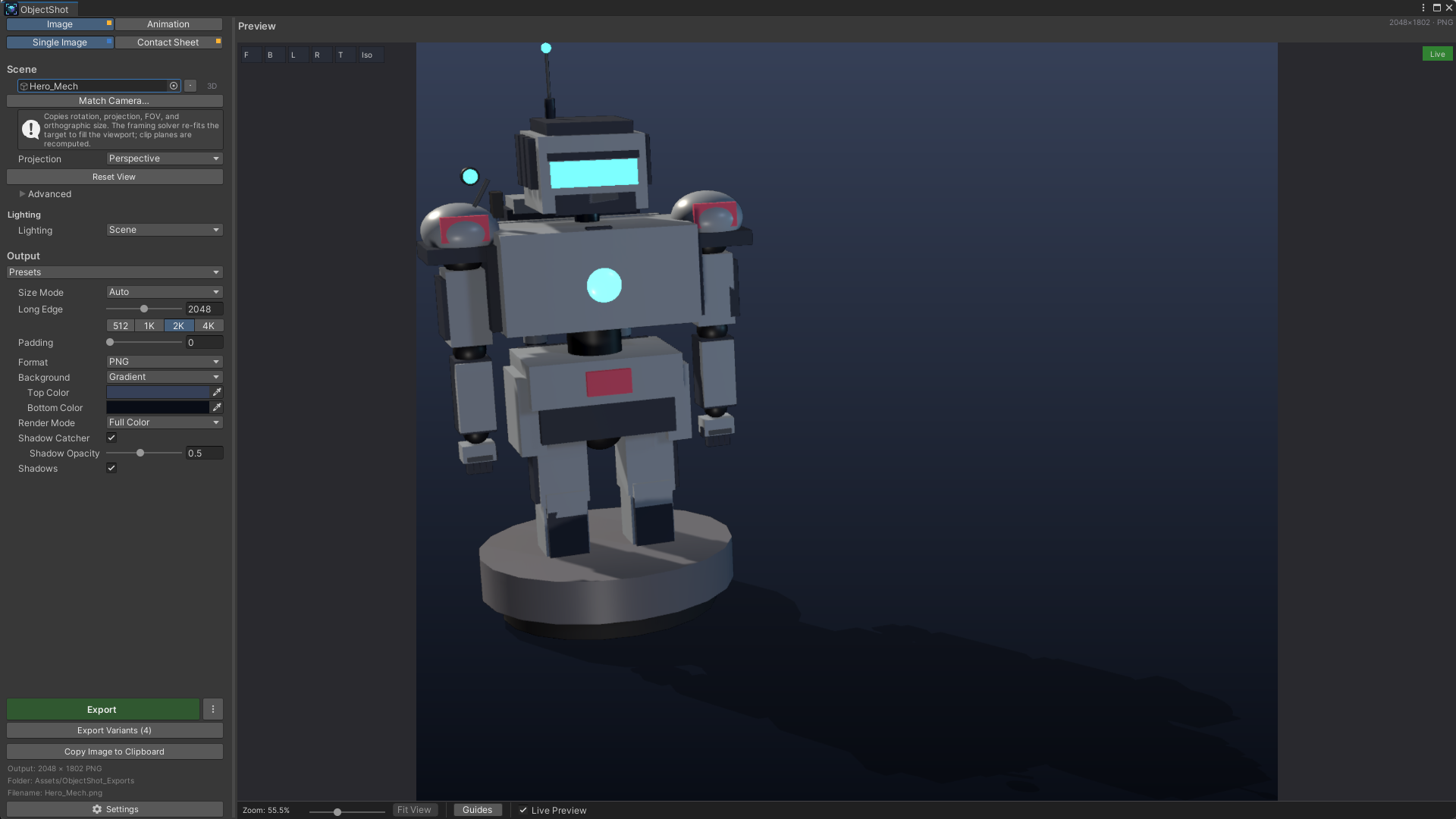
Drop a GameObject or UI hierarchy onto the target and frame it by moving the view — the live preview is the export. What you see in the panel is exactly what lands on disk, down to the pixel. Studio lighting, sensible framing, and a clean background mean the first result already looks shippable.
Transparent, solid, or gradient backgrounds
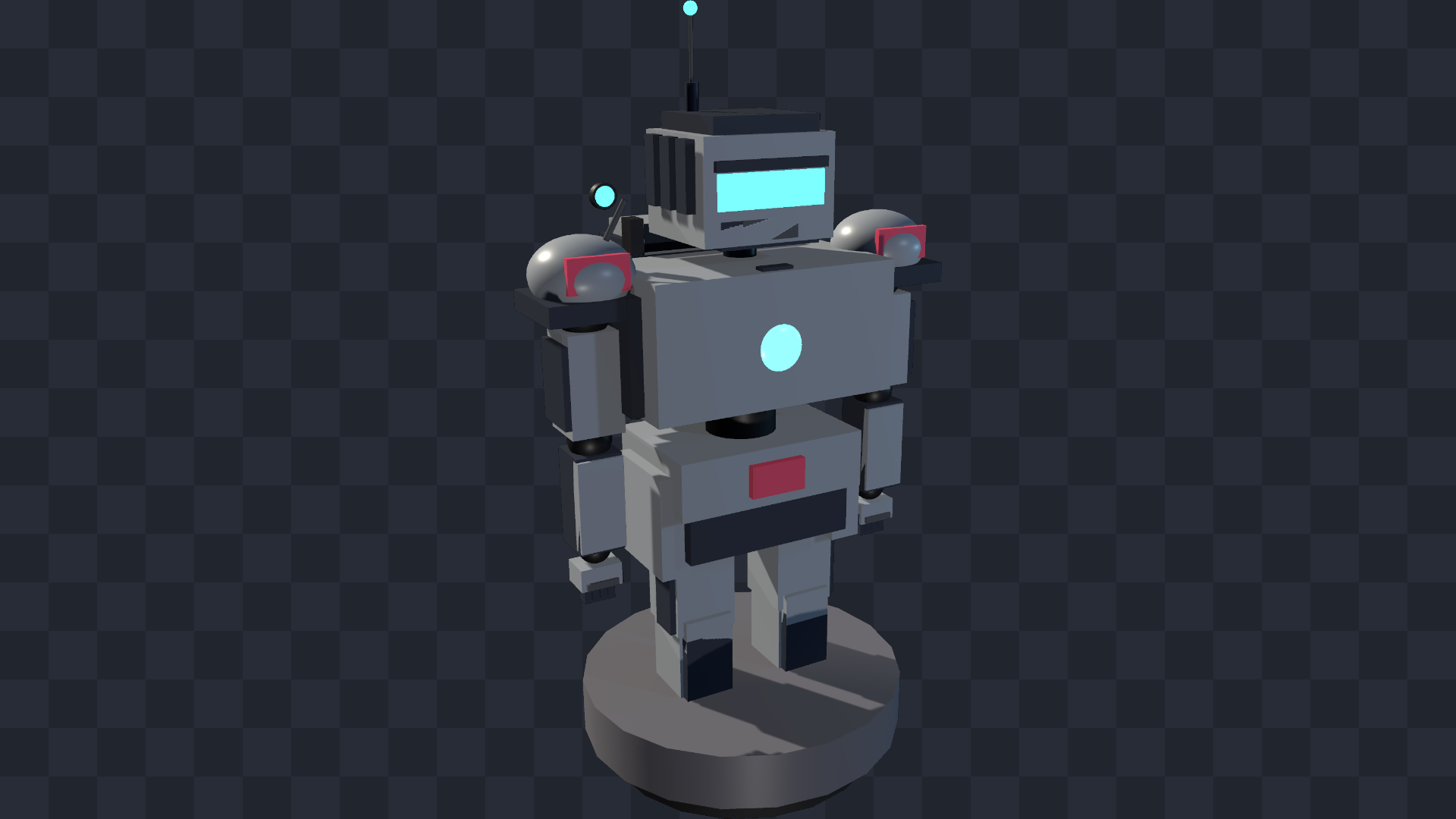
Composite anywhere. Export with a fully transparent background — alpha preserved in PNG, WebP, and TGA — or drop in a solid color or a brand-tinted gradient. The subject is isolated from the rest of the scene, so nothing bleeds into the frame.
Every angle at once — Contact Sheet
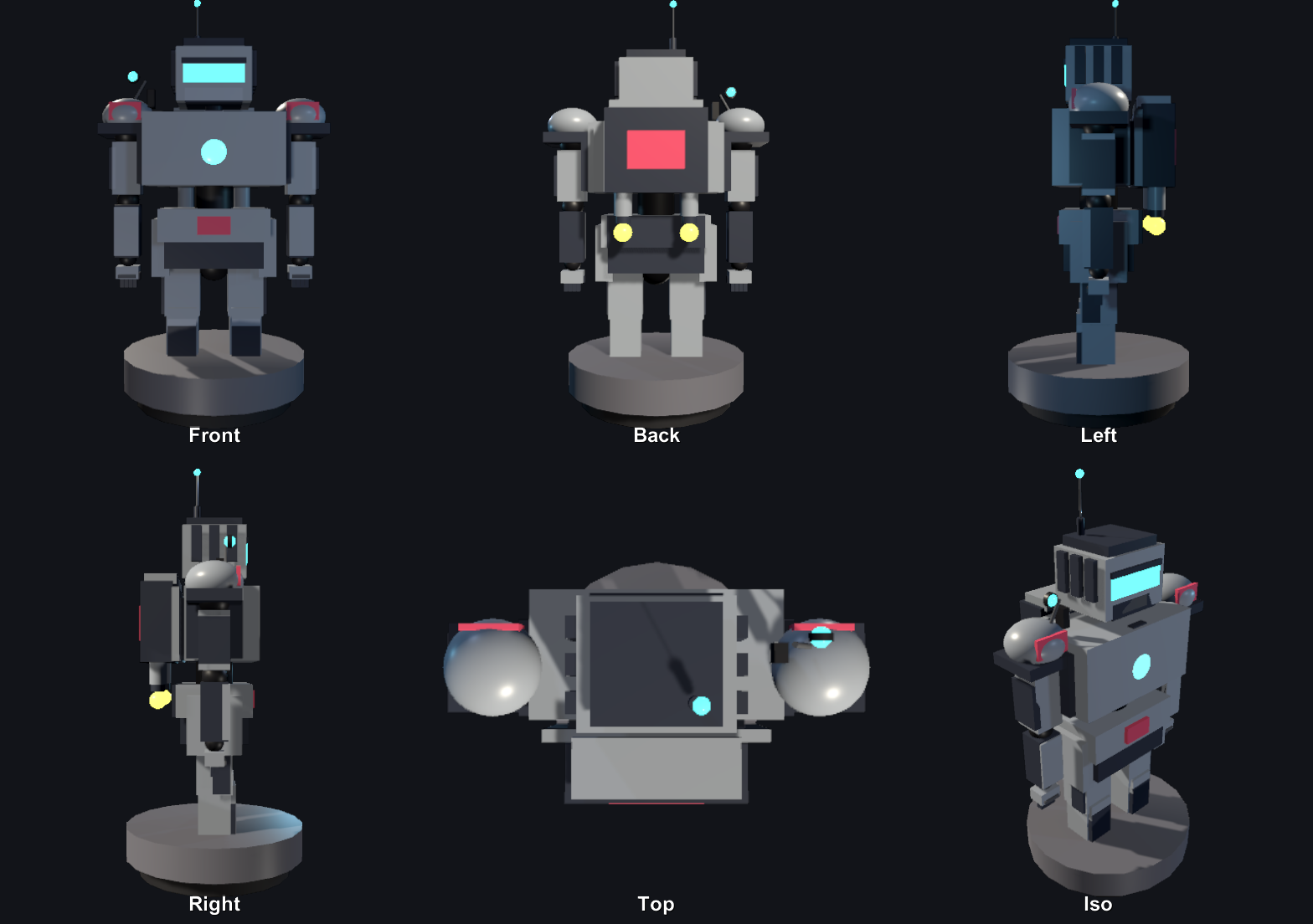
Capture the same target from several directions in one pass — front, back, sides, top, iso, or your own angles — laid out as a labeled grid. Ideal for reference sheets, model reviews, and store galleries that need consistent framing across every view.

A 360° turntable, no Play mode
Spin the subject a smooth 360° and capture the loop as an animation — without entering Play mode. Export it as APNG, animated WebP, GIF, a sprite sheet, or an image sequence.
The clip shown here is ObjectShot's own turntable output, played live in your browser — with a GIF fallback for older browsers.
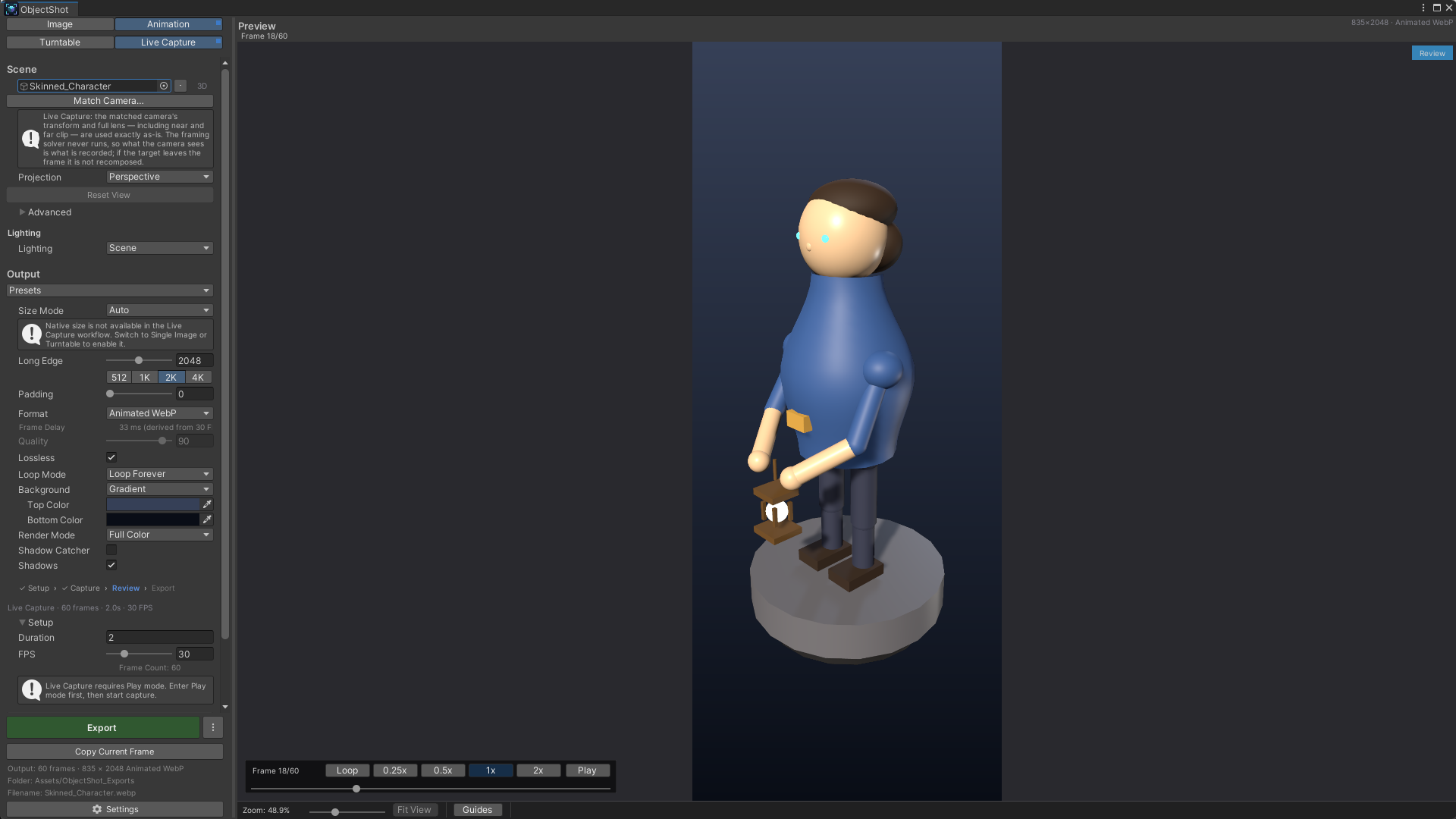
Live Capture — isolate motion from a running scene
Record an animation while the game plays, with the rest of the scene excluded from the frame. Capture a character's idle, a VFX loop, or a UI transition in isolation, then export it in the same animation formats as the turntable.
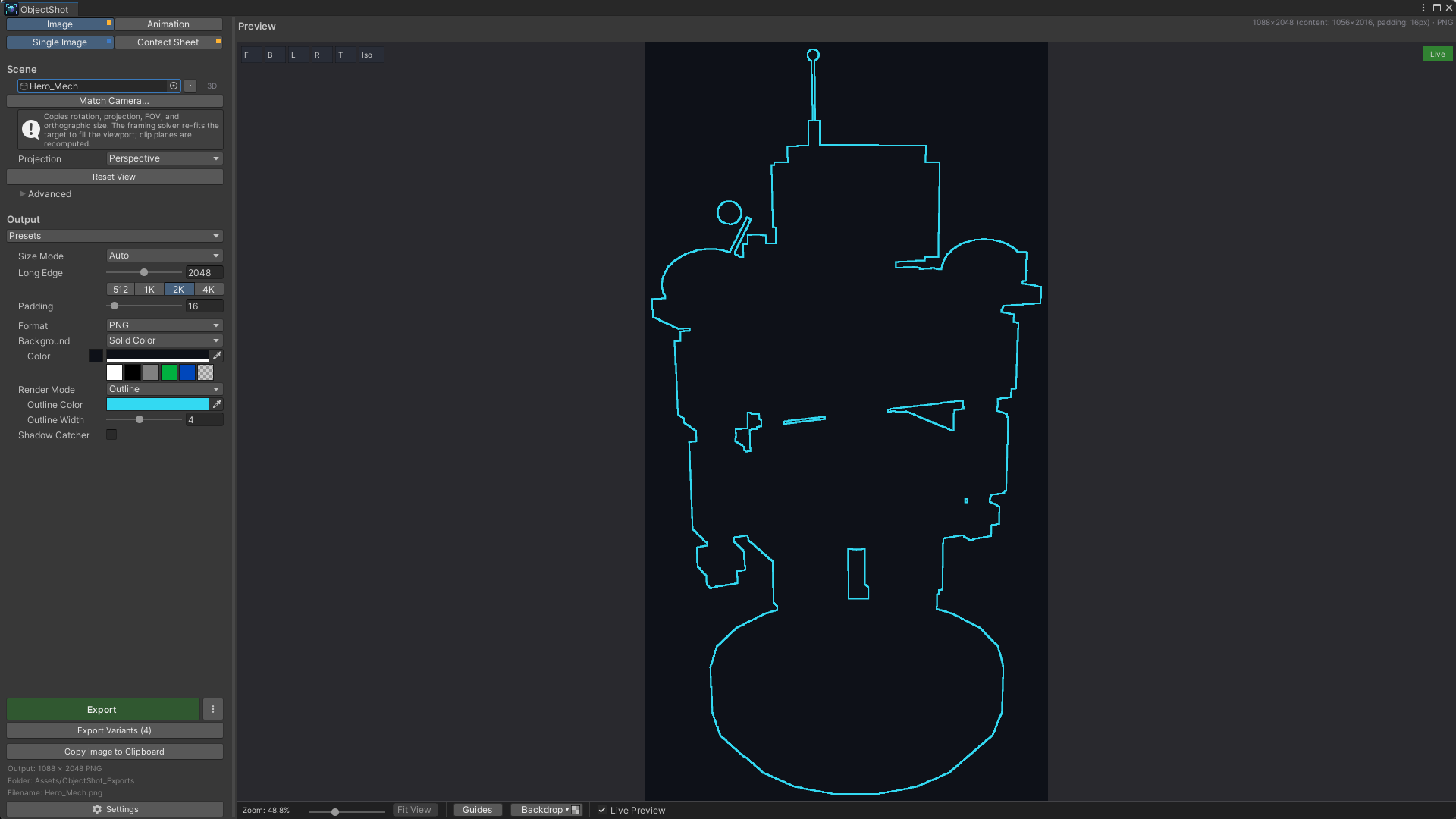
Silhouette and outline render modes
Beyond full color, render the subject as a flat silhouette or a clean edge outline — useful for icons, masks, UI states, and stylized marketing art. A shadow catcher adds a grounded contact shadow whenever you want one.
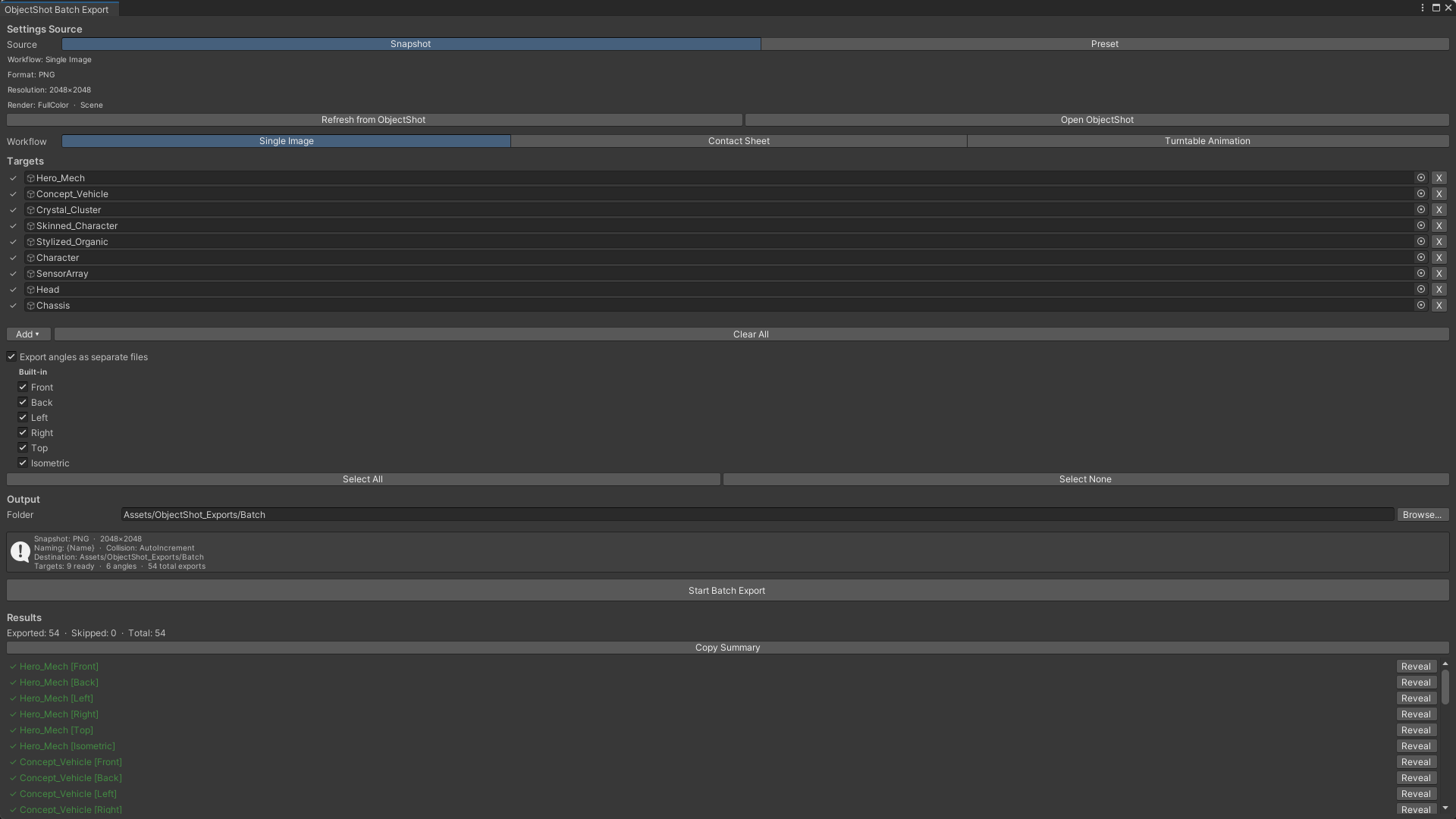
Presets, batch export, and a sample scene
Save any setup as a preset and reuse it across objects, or start from the built-ins — Transparent Icon, Marketing Hero, Store Listing, and more. Batch export turns one setup into a whole size ladder in a single run, and a generated sample scene lets you try every feature immediately.
Any subject, any pipeline
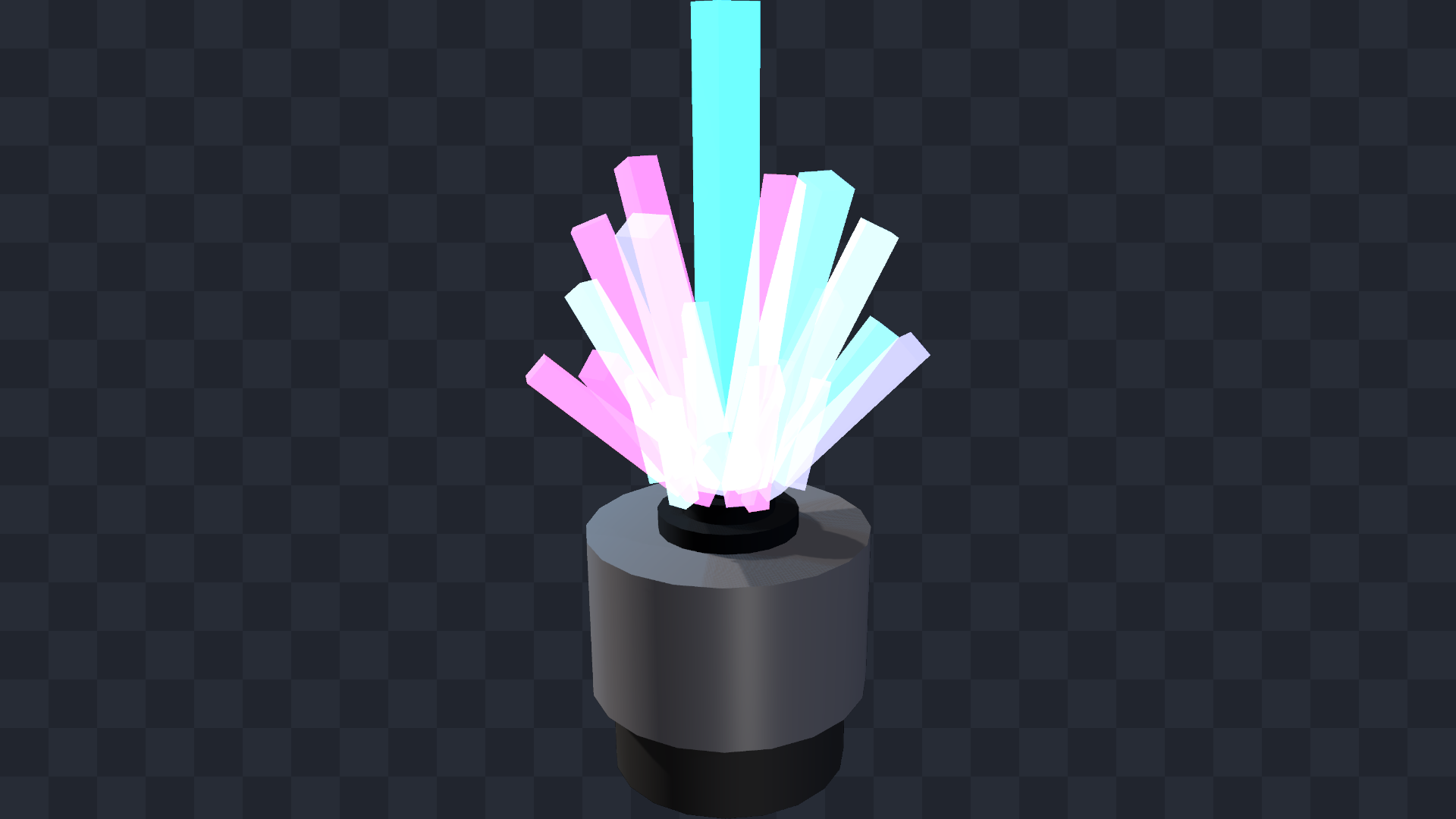
3D meshes, skinned characters, translucent and emissive materials, 2D sprites, and UI hierarchies all capture the same way. Everything runs on the Built-in Render Pipeline, URP, and HDRP with no pipeline-specific setup — output stays consistent across all three.
Two modes, four workflows
Still or animated, single or multi-angle — pick the workflow that fits, and export to the format your pipeline expects. Every workflow captures the same isolated subject, scene-safe.
| Workflow | Captures | Export formats |
|---|---|---|
| Single Image | One composed still of your target | PNG · JPG · WebP · TGA |
| Contact Sheet | A multi-angle grid of the same target | PNG · JPG · WebP · TGA |
| Turntable | A smooth 360° spin, no Play mode | APNG · GIF · animated WebP · Sprite Sheet · Image Sequence |
| Live Capture | An isolated animation from a running scene | APNG · GIF · animated WebP · Sprite Sheet · Image Sequence |
Stills support alpha wherever the format does. Background, render mode, lighting, and shadow catcher apply across every workflow.
Built for production
ObjectShot is designed to produce the same clean result every time, across many objects and many people, without surprises — and without leaving a trace on your scene.
-
Scene-safe by design. Capture runs against an internal cloned world — no transform, layer, or component change ever reaches your live scene.
-
Preview equals export. What you see is what you get, every time. There is no separate render step that can drift from the preview.
-
Deterministic output. Explicit, repeatable file paths, names, formats, and collision handling — friendly to version control and automation.
-
Professional defaults. Studio lighting, sensible framing, and clean backgrounds out of the box, with full control when you want it.
-
Zero runtime footprint. Editor-only, with no runtime component and a single dependency — Unity UI.
What people use it for
Store & marketing art. Asset Store thumbnails, key art, and social images from the same object — with a background, framing, and lighting you control.
Reference renders. Consistent, repeatable captures across a whole asset library — the same angles and lighting for every model, ready to diff or catalog.
Icons & UI states. Capture UI hierarchies and generate transparent icons, silhouettes, and outlines for in-game menus, toolbars, and HUDs.
Turntables for showcases. 360° spins and Live Capture loops for portfolio pages, product listings, and social posts — exported straight to WebP, GIF, or a sprite sheet.
Quick start
- Open
Tools > ObjectShot. - Drag a GameObject or UI hierarchy into the target field — or right-click it in the Hierarchy and choose
ObjectShot ▸ Capture Image/Animation. - Frame it in the live preview, then pick a workflow, background, and format.
- Click
Export…— or copy the result straight to the clipboard.
A generated sample scene ships with the package, so you can try every workflow before pointing it at your own objects.
Compatibility
- Unity
- 2022.3 LTS or later (2022.3 / 6000.0 / 6000.3 tested; Unity 6 supported)
- Render pipelines
- Built-in, URP, HDRP — no pipeline-specific setup
- Platform
- Windows, macOS, Linux (Editor tool)
- Runtime footprint
- None — Editor-only
- Dependencies
- Unity UI (
com.unity.ugui) only - Still formats
- PNG, JPG, WebP, TGA
- Animation formats
- APNG, GIF, animated WebP, Sprite Sheet, Image Sequence
Support
Questions, bug reports, and feature requests go to support@darnelix.com . Replies usually within a couple of business days.