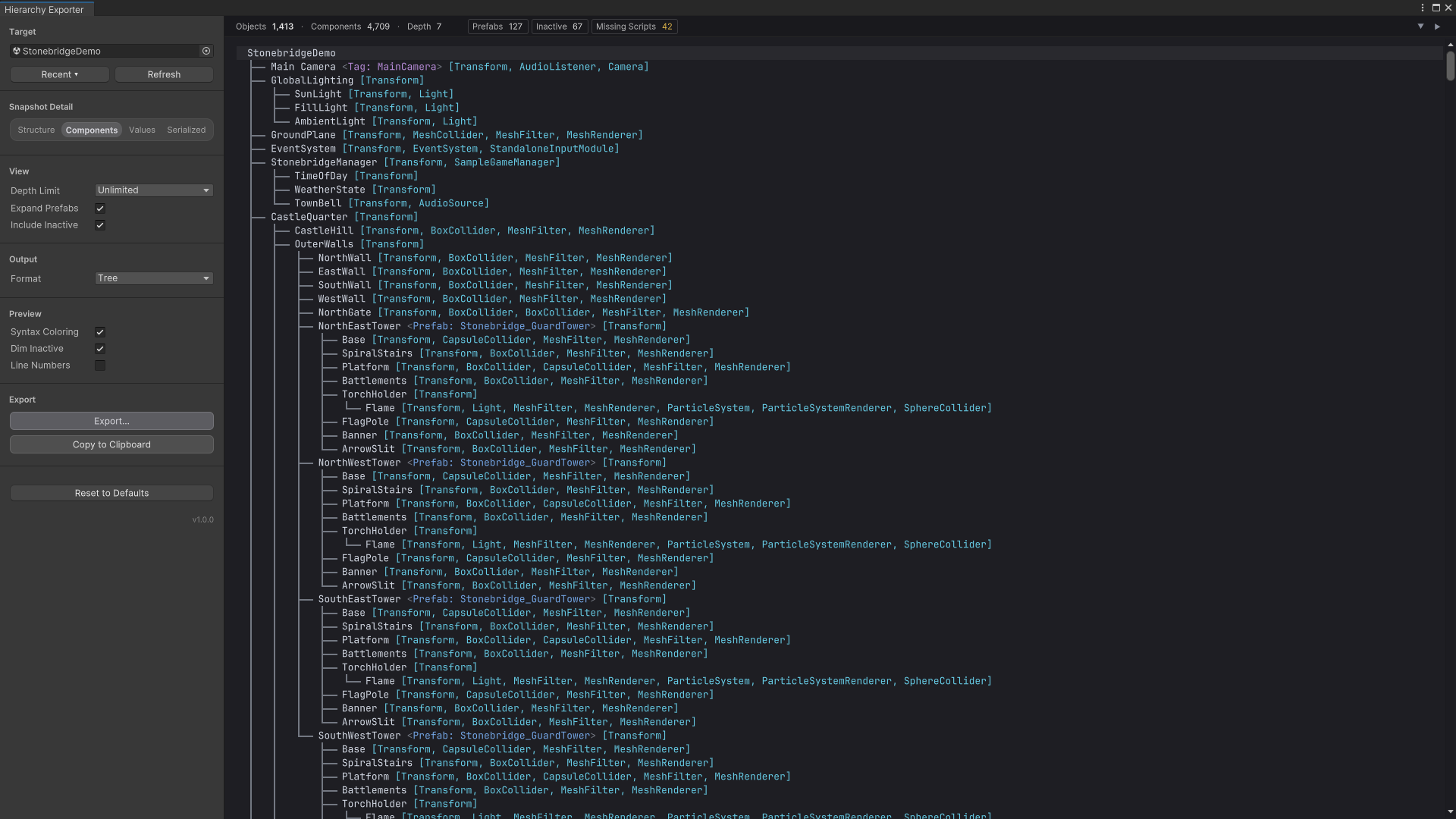
Dump a Unity scene hierarchy to a text file
Walk the scene’s root GameObjects, build an indented string as you recurse, and write it with File.WriteAllText from an editor script — no Play mode needed.
Applies to Unity 2021.3 LTS through Unity 6.0 LTS
Unity has no built-in “export hierarchy” command, and the scene file on disk is not
the answer either — a .unity file is YAML full of file IDs, not names.
The whole job is about forty lines of editor script.
Dump the open scene to a text file
using System.IO;
using System.Text;
using UnityEditor;
using UnityEngine;
using UnityEngine.SceneManagement;

/// <summary>
/// Dumps the open scene's hierarchy to a text file. Editor-only: put this in an
/// Editor/ folder. No Play mode, no runtime code in your build.
/// </summary>
public static class HierarchyDump
{
    [MenuItem("Tools/Dump Scene Hierarchy")]
    static void Dump()
    {
        Scene scene = SceneManager.GetActiveScene();

        var text = new StringBuilder();
        text.AppendLine(scene.name);

        GameObject[] roots = scene.GetRootGameObjects();
        for (int i = 0; i < roots.Length; i++)
        {
            Append(roots[i].transform, text, "", i == roots.Length - 1);
        }

        string path = EditorUtility.SaveFilePanel(
            "Dump scene hierarchy", "", $"{scene.name}-hierarchy", "txt");
        if (string.IsNullOrEmpty(path))
        {
            return;
        }

        File.WriteAllText(path, text.ToString());
        Debug.Log($"Wrote {roots.Length} roots to {path}");
    }

    static void Append(Transform transform, StringBuilder text, string prefix, bool isLast)
    {
        text.Append(prefix)
            .Append(isLast ? "└── " : "├── ")
            .AppendLine(transform.name);

        string childPrefix = prefix + (isLast ? "    " : "│   ");
        for (int i = 0; i < transform.childCount; i++)
        {
            Append(transform.GetChild(i), text, childPrefix, i == transform.childCount - 1);
        }
    }
}
Tools > Dump Scene Hierarchy. Editor-only — nothing here ships in your build.
Two details in there are the difference between a script that works once and one you
keep. EditorUtility.SaveFilePanel puts the file wherever you are
actually going to look for it, rather than in the project root; and passing the
isLast flag down the recursion is what lets the connector characters
close correctly, which is what makes the output readable at depth 8.
On a real scene the output has this shape. The excerpt below is a verbatim slice of a real export from a 1,413-object demo scene, not a hand-typed illustration — and it already carries each object's tag and component list, which the next section adds:
StonebridgeDemo
├── Main Camera <Tag: MainCamera> [Transform, AudioListener, Camera]
├── GlobalLighting [Transform]
│   ├── SunLight [Transform, Light]
│   ├── FillLight [Transform, Light]
│   └── AmbientLight [Transform, Light]
├── GroundPlane [Transform, MeshCollider, MeshFilter, MeshRenderer]
├── EventSystem [Transform, EventSystem, StandaloneInputModule]
├── StonebridgeManager [Transform, SampleGameManager]
│   ├── TimeOfDay [Transform]
│   ├── WeatherState [Transform]
│   └── TownBell [Transform, AudioSource]
…
Adding the components
A hierarchy without component names answers “what is in this scene” but not “why is
this object here”. GetComponents<Component>() gives you them —
with one landmine:
static void AppendComponents(Transform transform, StringBuilder text)
{
    var names = new List<string>();

    foreach (Component component in transform.GetComponents<Component>())
    {
        // GetComponents returns a NULL entry for a MonoBehaviour whose script is
        // missing. Dereferencing it here is how a scene dump crashes on the one
        // scene you most wanted dumped.
        names.Add(component == null ? "<Missing Script>" : component.GetType().Name);
    }

    text.Append(" [").Append(string.Join(", ", names)).Append(']');
}
A missing MonoBehaviour script comes back as a null entry, not as a skipped one.
That null is not an edge case you will never hit. Any scene that has outlived a
refactor or a package upgrade has missing scripts in it, and they cluster in exactly
the scenes people most want dumped. Naming them
<Missing Script> in the output turns the dump into the fastest
way to find them.
Dump to the console, or to the clipboard
The file is one destination; often you want the text in a bug report or a chat message instead.
// Console: fine for one subtree, wrong for a whole scene. The Editor console
// stores and renders every entry, and a few thousand lines of text in a single
// entry is neither readable nor selectable.
Debug.Log(text.ToString());

// Clipboard: what you actually want when the destination is a bug report or a
// chat message. Works from any Editor script.
EditorGUIUtility.systemCopyBuffer = text.ToString();

// One subtree only — Debug.Log with a context object highlights the GameObject
// in the Hierarchy window when you click the log entry.
Debug.Log(SubtreeAsText(transform), transform.gameObject);
EditorGUIUtility.systemCopyBuffer is the one people miss, and it is usually the one they wanted.
Debug.Log is the right destination for a single subtree and the wrong
one for a whole scene: the Editor console keeps every entry and renders it in a list
row, so a few thousand lines in one entry is neither readable nor selectable. Passing
the GameObject as the second argument is worth it though — clicking the log entry
then pings that object in the Hierarchy window.
JSON, and why JsonUtility will not do it
The obvious move is a [Serializable] node class holding a
List<Node> of itself, handed to JsonUtility.ToJson.
It compiles, it runs, and it silently gives you the wrong answer: Unity's serializer
stops at a nesting depth of seven and warns
“Serialization depth limit 7 exceeded… There may be an object composition cycle
in one or more of your serialized classes.” A scene tree is precisely that
shape, and any scene deeper than seven levels comes out truncated.
// JsonUtility cannot do this, and the failure is quiet.
//
// Unity's serializer stops at a nesting depth of 7 and warns
// "Serialization depth limit 7 exceeded... There may be an object composition
// cycle", so a node type that holds a List<Node> of itself silently truncates
// at depth 7. A scene tree is exactly that shape.
//
// Write the JSON yourself. It is twenty lines, and it is the only version that
// is correct at depth 20.

static void AppendJson(Transform transform, StringBuilder text, string indent)
{
    text.Append(indent).Append("{\n");
    text.Append(indent).Append("  \"name\": ").Append(Quote(transform.name));

    if (transform.childCount > 0)
    {
        text.Append(",\n").Append(indent).Append("  \"children\": [\n");
        for (int i = 0; i < transform.childCount; i++)
        {
            AppendJson(transform.GetChild(i), text, indent + "    ");
            text.Append(i == transform.childCount - 1 ? "\n" : ",\n");
        }
        text.Append(indent).Append("  ]");
    }

    text.Append('\n').Append(indent).Append('}');
}

/// <summary>RFC 8259 string escaping. Object names contain quotes and backslashes.</summary>
static string Quote(string value)
{
    var quoted = new StringBuilder("\"");
    foreach (char c in value)
    {
        switch (c)
        {
            case '"':  quoted.Append("\\\""); break;
            case '\\': quoted.Append("\\\\"); break;
            case '\n': quoted.Append("\\n");  break;
            case '\r': quoted.Append("\\r");  break;
            case '\t': quoted.Append("\\t");  break;
            default:
                if (c < ' ')
                {
                    quoted.Append("\\u").Append(((int)c).ToString("x4"));
                }
                else
                {
                    quoted.Append(c);
                }
                break;
        }
    }
    return quoted.Append('"').ToString();
}
Twenty lines, correct at depth 20. The escaping is not optional — GameObject names contain quotes.
And a real export in that shape, tags and components included, again verbatim:
{
  "name": "StonebridgeDemo",
  "components": [],
  "children": [
    {
      "name": "Main Camera",
      "tag": "MainCamera",
      "components": [
        {
          "type": "Transform"
        },
        {
          "type": "AudioListener"
        },
        {
          "type": "Camera"
        }
      ]
    },
    {
      "name": "GlobalLighting",
      "components": [
        {
          "type": "Transform"
        }
      ],
      "children": [
        …
Markdown and YAML
Same walk, different Append calls. Markdown is the format to reach for
when the destination is a pull request or a design doc, because it renders as a
nested list wherever you paste it. YAML is the one that diffs best in version
control — indentation-only changes when a subtree moves, rather than JSON's
brace-and-comma churn.
# Hierarchy

## **StonebridgeDemo**
  - **Main Camera** <Tag: MainCamera>
    - **Components:** `Transform`, `AudioListener`, `Camera`
  - **GlobalLighting**
    - **Components:** `Transform`
    - **SunLight**
      - **Components:** `Transform`, `Light`
    - **FillLight**
      - **Components:** `Transform`, `Light`
    - **AmbientLight**
      - **Components:** `Transform`, `Light`
…---
- name: StonebridgeDemo
children:
- name: Main Camera
tag: MainCamera
components:
- type: Transform
- type: AudioListener
- type: Camera
- name: GlobalLighting
components:
- type: Transform
children:
- name: SunLight
components:
- type: Transform
- type: Light
- name: FillLight
components:
- type: Transform
- type: Light
…Also called
The same job goes by a dozen names — dump scene hierarchy,
export the scene tree, print the hierarchy to console,
log all gameobjects, save the scene structure to txt,
serialize the transform hierarchy to json, write the scene graph to a
file. Console, clipboard, .txt, .json,
.md and .csv are all just different
StringBuilder endings on the one recursive walk above.
Reaching the objects in the first place
This page assumes you can already get at every object you want to dump. If your walk is quietly skipping the disabled half of the scene, that is a separate and very common problem: get all GameObjects in a Unity scene, including inactive ones.

The same dump in four formats, stable enough to diff.
The four exports on this page came out of Hierarchy Exporter. It walks a scene or prefab with tags, prefab sources, missing scripts and components included, previews the result before anything is written, and exports it as a tree, JSON, YAML or Markdown, to a file or the clipboard. The output is deterministic, so a diff between two exports shows only what actually changed in the scene.