Get all GameObjects in a Unity scene, including inactive ones
Unity’s find methods skip inactive GameObjects unless you ask for them: pass FindObjectsInactive.Include, or walk the scene’s roots yourself.
Applies to Unity 2021.3 LTS through Unity 6.6
The default call is the trap. FindObjectsOfType<T>() and
FindObjectsByType<T>() return components attached to
active GameObjects only. Nothing warns you: you get an array, the
array looks plausible, and the disabled half of your scene is simply not in it.
The call, per Unity version
Which method you want depends on your Unity version, and both of the obvious ones have been deprecated at some point — in opposite directions.
using UnityEngine;

/// <summary>
/// Every GameObject in every loaded scene, active or inactive.
/// Runtime or Editor. Put this anywhere; no Editor folder needed.
/// </summary>
public static class SceneObjects
{
    public static GameObject[] All()
    {
#if UNITY_6000_6_OR_NEWER
        // Unity 6.6 marked every FindObjectsSortMode overload [Obsolete]:
        // "Use FindObjectsByType(Type) or FindObjectsByType(Type, FindObjectsInactive) instead."
        Transform[] transforms = Object.FindObjectsByType<Transform>(
            FindObjectsInactive.Include);
#elif UNITY_2022_2_OR_NEWER
        // FindObjectsSortMode.None skips the sort and is the faster path.
        // Pass FindObjectsSortMode.InstanceID to reproduce FindObjectsOfType's old ordering.
        Transform[] transforms = Object.FindObjectsByType<Transform>(
            FindObjectsInactive.Include, FindObjectsSortMode.None);
#else
        // Unity 2021.3 LTS and earlier. FindObjectsOfType is [Obsolete] from 2023.1.
        // The bool argument IS includeInactive — leaving it out is the bug.
        Transform[] transforms = Object.FindObjectsOfType<Transform>(true);
#endif

        // Every GameObject has exactly one Transform, so this array is one-to-one
        // with the GameObjects — no duplicates and nothing missed.
        var objects = new GameObject[transforms.Length];
        for (int i = 0; i < transforms.Length; i++)
        {
            objects[i] = transforms[i].gameObject;
        }
        return objects;
    }
}
FindObjectsInactive.Include is the whole fix. Everything else here is version plumbing.
Three eras, and it is worth knowing which one you are in:
- Unity 2021.3 LTS and earlier.
Object.FindObjectsOfType<T>(true). The boolean isincludeInactive, and omitting it is the bug this page exists for. - Unity 2022.2 through Unity 6.5.
FindObjectsByTypearrives and takes two arguments:FindObjectsInactive.Includeor.Exclude, andFindObjectsSortMode.Noneor.InstanceID. Unity markedFindObjectsOfTypeobsolete in 2023.1 — “Use Object.FindObjectsByType instead which lets you decide whether you need the results sorted or not.”FindObjectsSortMode.Noneis the faster path; pass.InstanceIDonly if you were relying on the old ordering. - Unity 6.6 and newer. The sort argument is itself gone: every
overload taking
FindObjectsSortModeis now marked obsolete — “Use FindObjectsByType(Type) or FindObjectsByType(Type, FindObjectsInactive) instead.” So the call gets shorter again, and code written for 2022.2 starts warning.
Asking for Transform rather than GameObject is not a
stylistic choice. Every GameObject has exactly one Transform, so the array comes
back one-to-one with the objects — no duplicates, nothing skipped — and you get the
parent and child links in the same pass.
What that still misses
FindObjectsByType searches loaded objects, and that is both
more and less than “the scene” in two ways that bite:
- It spans every loaded scene, plus anything parked in
DontDestroyOnLoad. If you additively load a UI scene, its objects are in your array. - It excludes assets and objects flagged
HideFlags.DontSave. Unity's own advice for those isResources.FindObjectsOfTypeAll— which does list disabled objects, but also lists prefabs, materials, meshes, textures and internal editor objects, and which the documentation flags as “very slow”. It is a different tool for a different question, not a better version of this one.
Every GameObject in one scene, inactive included
When you mean this scene, ask the scene. Take its root objects and recurse through the transform hierarchy:
using System.Collections.Generic;
using UnityEngine;
using UnityEngine.SceneManagement;

/// <summary>
/// Every GameObject in ONE scene, active or inactive, parents before children.
/// </summary>
public static class SceneWalk
{
    public static List<GameObject> All(Scene scene)
    {
        var found = new List<GameObject>();
        if (!scene.isLoaded)
        {
            return found;
        }

        foreach (GameObject root in scene.GetRootGameObjects())
        {
            Collect(root.transform, found);
        }
        return found;
    }

    static void Collect(Transform transform, List<GameObject> into)
    {
        into.Add(transform.gameObject);

        // childCount / GetChild walk the transform hierarchy itself, which does not
        // filter on active state — that is why nothing here needs an "include inactive"
        // flag, and why an inactive parent does not hide its children from you.
        for (int i = 0; i < transform.childCount; i++)
        {
            Collect(transform.GetChild(i), into);
        }
    }
}

// Usage:
//   List<GameObject> all = SceneWalk.All(SceneManager.GetActiveScene());
//
// For every loaded scene, including additively loaded ones:
//   for (int i = 0; i < SceneManager.sceneCount; i++)
//   {
//       all.AddRange(SceneWalk.All(SceneManager.GetSceneAt(i)));
//   }
Parents come out before their children, which is usually what you want for printing or serialising.
Notice there is no “include inactive” flag anywhere in that walk, and it still
reaches every inactive object. Transform.childCount and
Transform.GetChild read the transform hierarchy itself, which does not
filter on active state — so an inactive parent does not hide its subtree from you
the way it hides it from GameObject.Find. That is also why this is the
version to reach for when you need ordering: the find methods hand back a
flat array in whatever order the engine has them, while this gives you the tree.
GetRootGameObjects needs its scene to be loaded — hence the
scene.isLoaded guard, which matters as soon as you start iterating
SceneManager.sceneCount rather than taking the active scene.
Doing it in the editor, without entering Play mode
Both approaches work unchanged in an editor script, because the open scene is a loaded scene. That is the whole trick to counting or auditing a scene without pressing Play:
using UnityEditor;
using UnityEngine;
using UnityEngine.SceneManagement;

/// <summary>
/// Counts the open scene without entering Play mode.
/// This file must live in a folder named Editor/ so it is stripped from builds.
/// </summary>
public static class CountSceneObjects
{
    [MenuItem("Tools/Count Scene Objects")]
    static void Count()
    {
        var all = SceneWalk.All(SceneManager.GetActiveScene());

        int inactive = 0;
        foreach (GameObject go in all)
        {
            if (!go.activeInHierarchy)
            {
                inactive++;
            }
        }

        Debug.Log($"{all.Count} objects, {inactive} inactive.");
    }
}
The file has to live in a folder literally named Editor/, or UnityEditor comes along into your build and the build fails.
Run it on a real scene and the two numbers are usually further apart than people expect — disabled variants, pooled objects, unlit alternates and every “turn this on later” object are all in the second count and none of them are in the first. For a one-off count or audit, that script is the whole job.
Also called
The same problem goes by a dozen names: find all gameobjects including inactive, get all objects in scene, list all children recursively, iterate the whole transform hierarchy, find disabled game object, FindObjectsOfType not finding inactive. Every one of them comes down to the two mechanisms above — a find call told to include inactive objects, or a recursive walk from the scene's roots.
Getting it back out of Unity
Reaching the objects is half of it; most people who need this list next need it in
a file, a console log or a code review. That has its own set of sharp edges — the
components array containing nulls, JsonUtility quietly truncating a
recursive tree — and its own page:
dump a Unity scene hierarchy to a
text file.

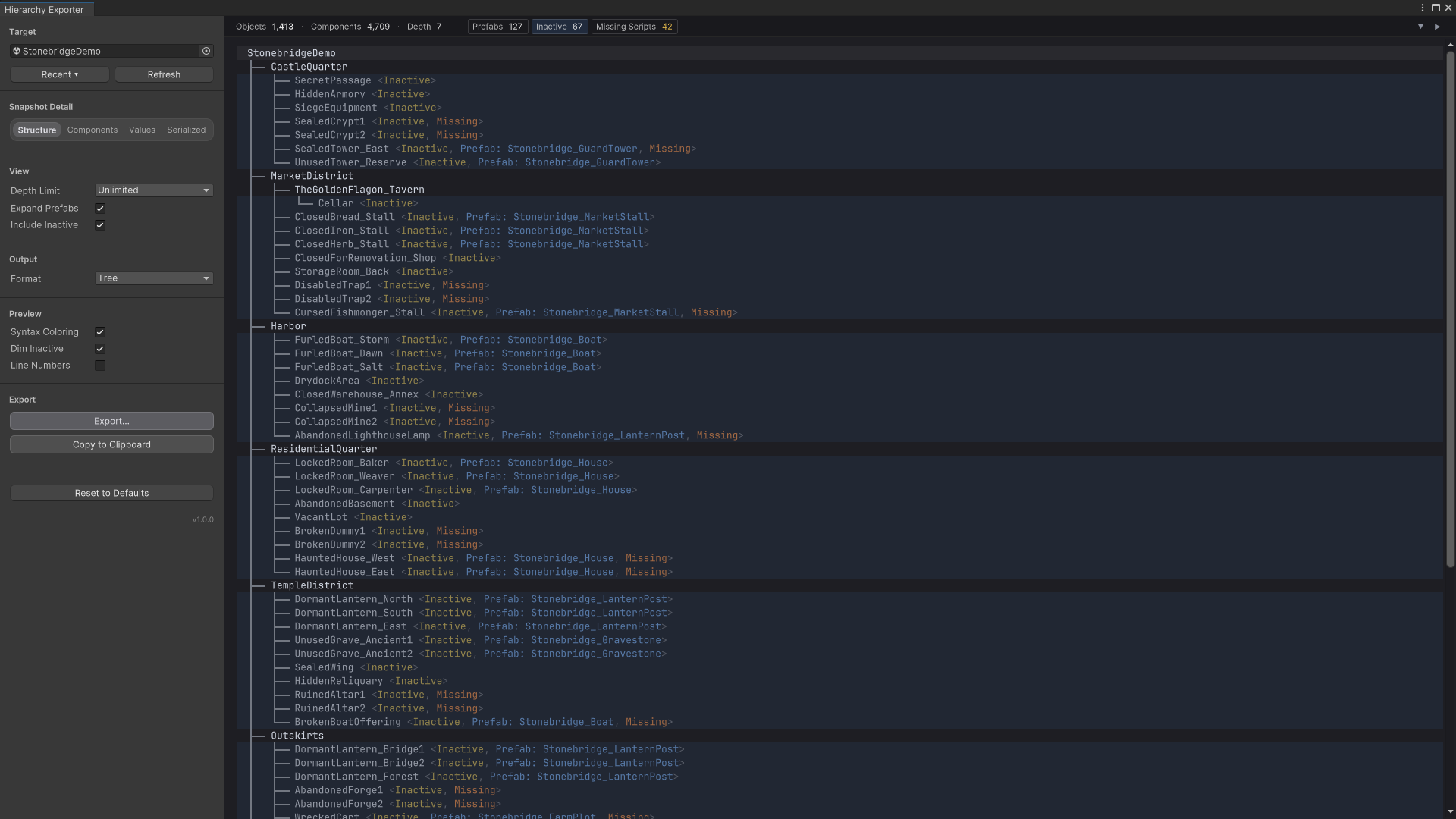
Every object in the scene, inactive ones included — and flagged.
Hierarchy Exporter walks every GameObject in a scene or prefab, active or not, and shows the result as a live, searchable tree. One click on the Inactive filter highlights exactly the objects a default find call leaves out. The same view filters by tag, layer, prefab source and missing script, stays responsive at 280,000 nodes, and exports what you see as a tree, JSON, YAML or Markdown.