Save a GameObject or prefab as a transparent PNG in Unity
Render it with a camera that clears to Color.clear, into an ARGB32 RenderTexture, then read it back as RGBA32 and save it with EncodeToPNG.
Applies to Unity 2022.3 LTS through Unity 6.3 LTS
A screenshot will not do it — Unity's own Recorder documentation says flatly that the Game view doesn't support the alpha channel. What does is a render in which every step that carries alpha keeps it: a camera that clears to zero alpha, a render target with an alpha channel, a readback texture with one, and an encoder that writes it. Break any one of those and you get a black or opaque background, with no error to say which.
The whole job, as one editor script
using System.IO;
using UnityEditor;
using UnityEditor.SceneManagement;
using UnityEngine;
using UnityEngine.SceneManagement;

/// <summary>
/// Saves a GameObject or prefab as a PNG with a transparent background.
/// Editor-only: put it in an Editor/ folder. Nothing is added to your open scene.
/// </summary>
public static class TransparentPng
{
    [MenuItem("Assets/Save as Transparent PNG")]
    [MenuItem("GameObject/Save as Transparent PNG", false, 49)]
    static void SaveSelection()
    {
        GameObject source = Selection.activeGameObject;
        string path = EditorUtility.SaveFilePanel("Save transparent PNG", "", source.name, "png");
        if (!string.IsNullOrEmpty(path))
        {
            Save(source, path, 1024);
        }
    }

    [MenuItem("Assets/Save as Transparent PNG", true)]
    [MenuItem("GameObject/Save as Transparent PNG", true)]
    static bool HasSelection() => Selection.activeGameObject != null;

    public static void Save(GameObject source, string pngPath, int size)
    {
        // A scene of its own: not in the Hierarchy, never saved, and invisible to
        // every camera except one that is told to render it.
        Scene scene = EditorSceneManager.NewPreviewScene();
        try
        {
            GameObject subject = Object.Instantiate(source);
            SceneManager.MoveGameObjectToScene(subject, scene);

            // A preview scene starts with no lights at all: bring a key, and a fill
            // from the camera's side so nothing facing it renders black.
            AddLight(scene, Quaternion.Euler(50f, 30f, 0f), 1f);
            AddLight(scene, Quaternion.Euler(20f, -30f, 0f), 0.4f);

            var cameraObject = new GameObject("Camera", typeof(Camera));
            SceneManager.MoveGameObjectToScene(cameraObject, scene);
            Camera camera = cameraObject.GetComponent<Camera>();
            camera.enabled = false;                          // rendered by hand, once
            camera.scene = scene;                            // sees this scene and nothing else
            camera.clearFlags = CameraClearFlags.SolidColor;
            camera.backgroundColor = Color.clear;            // (0, 0, 0, 0): the alpha is the point
            Frame(camera, subject);

            Texture2D image = Capture(camera, size);
            File.WriteAllBytes(pngPath, image.EncodeToPNG());
            Object.DestroyImmediate(image);
        }
        finally
        {
            EditorSceneManager.ClosePreviewScene(scene);     // destroys everything in it
        }
    }

    /// <summary>One render into a target that has an alpha channel, read back into a texture that keeps it.</summary>
    static Texture2D Capture(Camera camera, int size)
    {
        var target = new RenderTexture(size, size, 24, RenderTextureFormat.ARGB32);
        var image = new Texture2D(size, size, TextureFormat.RGBA32, false);

        camera.targetTexture = target;
        camera.Render();
        camera.targetTexture = null;

        RenderTexture previous = RenderTexture.active;
        RenderTexture.active = target;
        image.ReadPixels(new Rect(0, 0, size, size), 0, 0);
        RenderTexture.active = previous;

        target.Release();
        Object.DestroyImmediate(target);
        return image;
    }

    static void AddLight(Scene scene, Quaternion rotation, float intensity)
    {
        var lightObject = new GameObject("Light", typeof(Light));
        SceneManager.MoveGameObjectToScene(lightObject, scene);
        Light light = lightObject.GetComponent<Light>();
        light.type = LightType.Directional;
        light.intensity = intensity;
        lightObject.transform.rotation = rotation;
    }

    /// <summary>Points the camera at the renderers' combined bounds from a three-quarter view.</summary>
    static void Frame(Camera camera, GameObject subject)
    {
        Renderer[] renderers = subject.GetComponentsInChildren<Renderer>();
        if (renderers.Length == 0)
        {
            return;
        }

        Bounds bounds = renderers[0].bounds;
        foreach (Renderer renderer in renderers)
        {
            bounds.Encapsulate(renderer.bounds);
        }

        float radius = bounds.extents.magnitude * 1.05f;     // a little margin
        float distance = radius / Mathf.Sin(camera.fieldOfView * 0.5f * Mathf.Deg2Rad);
        camera.transform.rotation = Quaternion.Euler(20f, -30f, 0f);
        camera.transform.position = bounds.center - camera.transform.forward * distance;
        camera.nearClipPlane = Mathf.Max(0.01f, distance - radius);
        camera.farClipPlane = distance + radius;
    }
}
Select a prefab or a scene object, then Assets > Save as Transparent PNG. Nothing is added to your scene.
The four settings that carry the alpha
-
clearFlags = SolidColorandbackgroundColor = Color.clear. The camera fills every pixel it does not draw with (0, 0, 0, 0). The zero alpha is the transparency; black at alpha 1 is just a black background. -
RenderTextureFormat.ARGB32. The target needs an alpha channel to clear into. Render to the screen, or to a format without alpha, and there is nowhere for the transparency to go. -
TextureFormat.RGBA32.ReadPixelscopies into whatever the texture can hold, so anRGB24texture quietly drops the alpha you just rendered. -
EncodeToPNG. It writes RGBA when the texture is RGBA.EncodeToJPGcannot: JPEG has no alpha channel at all.
Rendering a prefab without adding it to the scene
EditorSceneManager.NewPreviewScene creates an editor-only scene that never
appears in the Hierarchy — the same kind Unity uses for the Inspector's preview and for
Prefab Mode — and Camera.scene restricts a camera to rendering that scene
and nothing else. In Unity's words, any object added to a preview scene will only be
rendered in that scene. So the copy is instantiated there, lit there and rendered
there, and your open scene is not marked dirty and gains no objects.
Two things come with it. A preview scene starts with no lights, which is why the script
brings its own key and fill. And it has to be closed:
ClosePreviewScene is what destroys everything in it, and Unity's
documentation warns that skipping it leaks scenes — hence the finally.
URP: post-processing makes the background opaque
A camera created from script has post-processing switched off in URP, and that is part
of why the script above comes out transparent. Turn it on —
GetUniversalAdditionalCameraData().renderPostProcessing = true — and URP's
post-processing writes alpha 1 over the entire frame: the PNG comes back with an opaque
black background. That happens on URP 14 (Unity 2022.3) and URP 17 (Unity 6.3) alike.
Unity 6 adds a way to keep both: URP Asset > Post-processing > Alpha Processing renders post-processing into a target with an alpha channel. URP 14 has no such setting, so on 2022.3 keep post-processing off for the capture camera.
HDRP: the Color Buffer Format decides
HDRP keeps an alpha channel only when the active HDRP Asset's Rendering > Color Buffer Format is R16G16B16A16. R11G11B10 has no alpha channel, and the background renders opaque. The catch is that the HDRP project template ships its High Fidelity quality level with R16G16B16A16 and its Balanced and Performant levels with R11G11B10 — so the same script exports a transparent PNG at one quality level and an opaque one at another. For post-processing to be applied to the alpha as well, set Post-processing > Buffer Format to R16G16B16A16 too; otherwise HDRP passes the alpha through untouched by it.
The second HDRP difference is exposure. Under HDRP's default exposure, the script's plain lights render the subject pure white. Pin the exposure for the capture:
using UnityEngine;
using UnityEngine.Rendering;
using UnityEngine.Rendering.HighDefinition;
using UnityEngine.SceneManagement;

/// <summary>
/// HDRP only. With HDRP's default exposure, a one-off render of a preview scene lit by
/// plain Lights comes out pure white. Pin the exposure for that scene instead.
/// </summary>
public static class HdrpCaptureExposure
{
    /// <summary>
    /// Call after adding the lights, before camera.Render(). Destroy the returned
    /// profile once the PNG is written: closing the scene does not.
    /// </summary>
    public static VolumeProfile Pin(Scene scene, float ev100 = 8f)
    {
        var profile = ScriptableObject.CreateInstance<VolumeProfile>();
        Exposure exposure = profile.Add<Exposure>(true);
        exposure.mode.Override(ExposureMode.Fixed);
        exposure.fixedExposure.Override(ev100);          // lower is brighter

        var volumeObject = new GameObject("Exposure", typeof(Volume));
        SceneManager.MoveGameObjectToScene(volumeObject, scene);
        Volume volume = volumeObject.GetComponent<Volume>();
        volume.isGlobal = true;
        volume.priority = float.MaxValue;                 // above the project's own volumes
        volume.sharedProfile = profile;
        return profile;
    }
}
In Save(), call HdrpCaptureExposure.Pin(scene) after the lights, and DestroyImmediate the profile it returns after writing the PNG.
EV 8 suits the script's two directional lights of intensity 1 and 0.4. Lower values are brighter; light your subject with HDRP's own light units and the right number changes with it.
Glass, fades and other semi-transparent materials
A transparent background is not the same thing as a transparent object. What a see-through material writes into the alpha channel depends on its shader's blend mode, and some common ones get it wrong. Each of these was rendered at 50% opacity with the script above:
- URP Lit, Surface Type Transparent: alpha 127, the right number —
but the colour comes out already multiplied by it, because it was blended over the
black of
Color.clear. A PNG stores colour and alpha separately, so the pane composites darker than the material really is. - Built-in Standard, Rendering Mode Fade: alpha 127 with the script's two lights, and 64 with only one. Each light's pass adds to the alpha channel, so the number in the PNG depends on how the object is lit, not on how transparent it is.
- Built-in Legacy Shaders/Transparent/Diffuse: alpha 0. It does not write alpha at all, and the glass vanishes from the PNG.
The fix that works whatever the shader does is to render the frame twice, over black and then over white, and take both the alpha and the colour from the difference. An opaque pixel is identical over both backgrounds; the more of the background shows through a pixel, the more the two renders differ there, and that difference is exactly how transparent it is.
using UnityEngine;

/// <summary>
/// True alpha for glass, fades and anything else semi-transparent: render the frame
/// twice, over black and over white, and let the difference say how see-through each
/// pixel is. It does not care what the shader writes into the alpha channel.
/// </summary>
public static class DifferenceMatte
{
    /// <summary>Replaces the single render and ReadPixels in Save().</summary>
    public static Texture2D Capture(Camera camera, int size)
    {
        Color[] overBlack = RenderLinear(camera, size, Color.black);
        Color[] overWhite = RenderLinear(camera, size, Color.white);

        var pixels = new Color[overBlack.Length];
        for (int i = 0; i < pixels.Length; i++)
        {
            Color black = overBlack[i];
            Color white = overWhite[i];

            // Over black a pixel is colour * alpha; over white it is that plus (1 - alpha).
            float alpha = Mathf.Clamp01(1f - ((white.r - black.r) + (white.g - black.g) + (white.b - black.b)) / 3f);
            Color colour = alpha > 0f ? (black / alpha).gamma : Color.clear;   // .gamma: Linear projects only
            pixels[i] = new Color(colour.r, colour.g, colour.b, alpha);
        }

        var image = new Texture2D(size, size, TextureFormat.RGBA32, false);
        image.SetPixels(pixels);
        return image;
    }

    /// <summary>Half-float and linear, so the subtraction above is done on real light values.</summary>
    static Color[] RenderLinear(Camera camera, int size, Color background)
    {
        var target = new RenderTexture(size, size, 24, RenderTextureFormat.ARGBHalf, RenderTextureReadWrite.Linear);
        var read = new Texture2D(size, size, TextureFormat.RGBAHalf, false, true);
        try
        {
            camera.backgroundColor = background;
            camera.targetTexture = target;
            camera.Render();
            camera.targetTexture = null;

            RenderTexture previous = RenderTexture.active;
            RenderTexture.active = target;
            read.ReadPixels(new Rect(0, 0, size, size), 0, 0);
            RenderTexture.active = previous;
            return read.GetPixels();
        }
        finally
        {
            Object.DestroyImmediate(read);
            target.Release();
            Object.DestroyImmediate(target);
        }
    }
}
In Save(), swap Capture(camera, size) for DifferenceMatte.Capture(camera, size). Written for a Linear colour-space project.
It costs a second render. On all three materials above it produced alpha 127–128 and the colour an opaque version of the same material renders, and it leaves opaque pixels exactly as the plain render had them.
Without writing any code
Unity Recorder, a free Unity package, can write transparent PNGs from any camera you can play: an Image Sequence recorder with Source set to Targeted Camera, format PNG, and Include Alpha enabled. The URP and HDRP settings above still apply — Recorder's documentation says the render pipeline has to be set up to output alpha — and it only works in Play mode, so the object has to be in a scene that is playing. For an animation or a turntable that is exactly right; for a single prefab, the script is less work.
Also called
The same job gets asked as save a GameObject as a PNG with a transparent background, render a prefab to PNG, export a model as a transparent image, screenshot a prefab without adding it to the scene, and — once the first attempt has failed — RenderTexture black background instead of transparent. Every one of them is the same four settings.
A whole folder of icons
If what you need is a consistent set rather than one image — every prefab in a folder, framed the same way, imported so the edges do not pick up a dark fringe in your UI — that has its own page: generate item icons from prefabs in Unity.

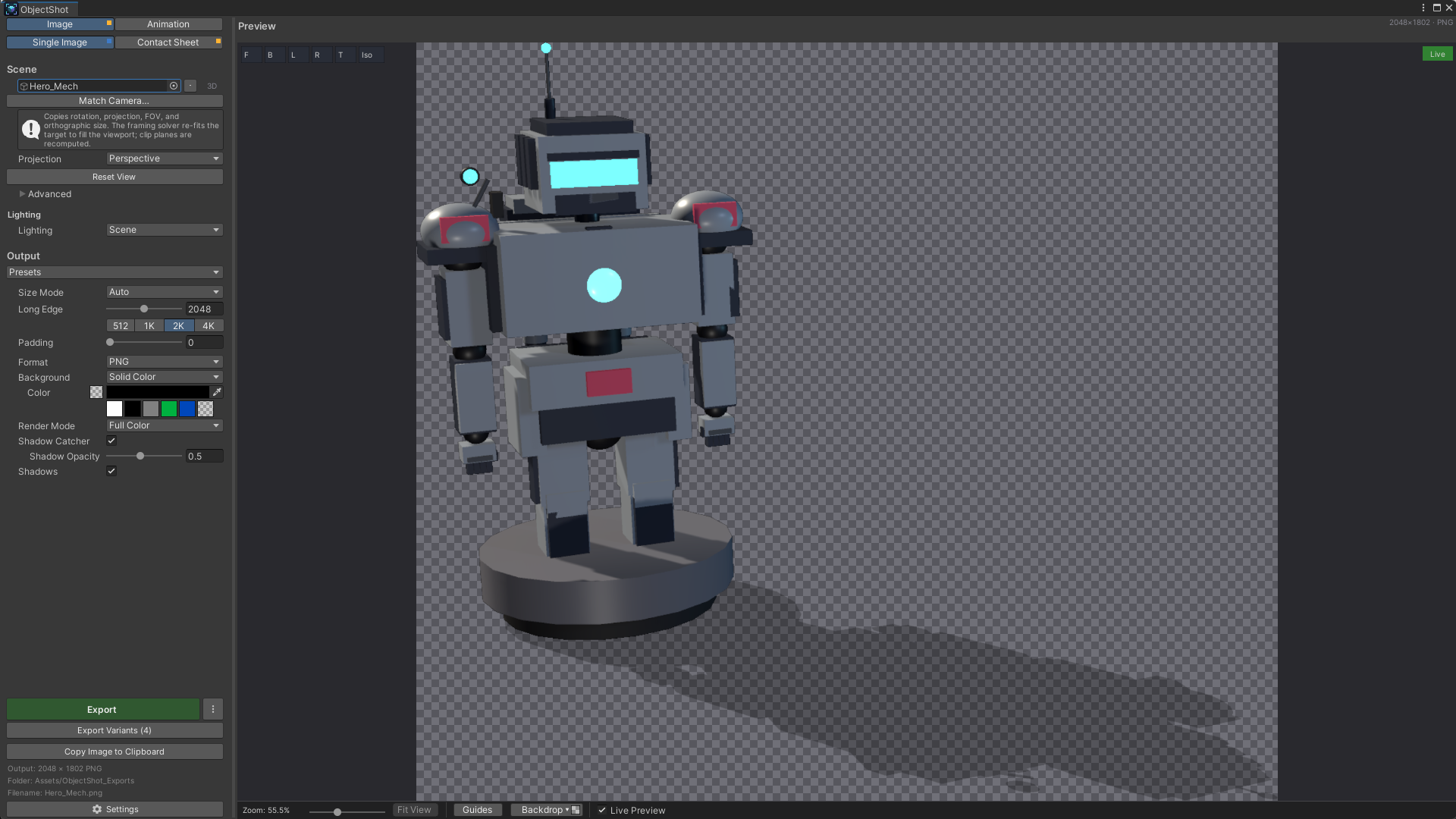
A transparent PNG of any GameObject, framed and lit, without touching your scene.
ObjectShot renders any GameObject, prefab or UI hierarchy in an isolated capture world — your open scene is never modified — and exports it with a fully transparent background as PNG, WebP or TGA. The live preview is exactly what gets written, studio lighting and framing are there from the first capture, and a shadow catcher keeps the contact shadow as semi-transparent pixels.